


ArtLoop: Learn how to draw
4.6324.00 Reviews
App Specs
- Version
- 1.9.59
- Updated On
- License
- Free
- Downloads
- 5,000,000+
- Developer
- LifeIsGame
- Categories
- Art & Design
- Platform
- Android, iOS
Screenshots
 Analysis by AppCompare
If you've ever wanted to dabble in art but found yourself staring blankly at a canvas, wondering where to start, ArtLoop: Learn how to draw might just be the app for you. This nifty little tool is like having a personal art tutor in your pocket, ready to guide you through the basics and beyond. Let's dive into what makes this app a must-have for aspiring artists.
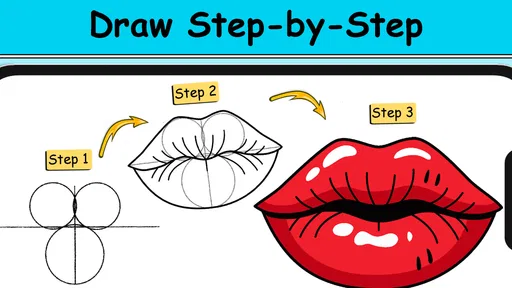
What makes the idea especially useful is the step-by-step approach: instead of expecting you to invent a subject and plan a finished picture on your own, the app gives you a route into drawing. I find that difference matters most on an ordinary day when I have a little time but no clear idea what to practice. Following a lesson can turn that blank-page moment into a manageable first mark, then a few more.
Getting Started with ArtLoop
The first thing you'll notice about ArtLoop: Learn how to draw is its user-friendly interface. From the moment you launch the app, it feels like a welcoming space. No complicated menus or overwhelming options—just a straightforward path to getting your creative juices flowing. After a quick setup, you’re greeted with a variety of drawing courses that cater to different skill levels. Whether you’re a complete newbie or someone looking to refine your skills, there’s something for everyone.
It helps to choose a lesson with a small, clear goal rather than treating the course list like a test you need to pass. If I have ten minutes, I can focus on one shape or one feature and stop there; if I have longer, I can continue and compare the later steps with my first attempt. That approach makes guided practice feel less intimidating and gives me a visible point of progress without requiring a finished masterpiece every time.
ArtLoop is an art-and-design app from LifeIsGame, and its central appeal is learning by following drawing instruction rather than simply opening a blank digital canvas. It is free to install, with in-app purchases priced at $0.99 per item. The app is rated for Everyone, and its 4.7 average across around 63,000 ratings suggests that many users have found the guided format worthwhile. It has passed five million installs, so it is also a familiar choice for people exploring drawing lessons on a phone.
The Courses and Lessons
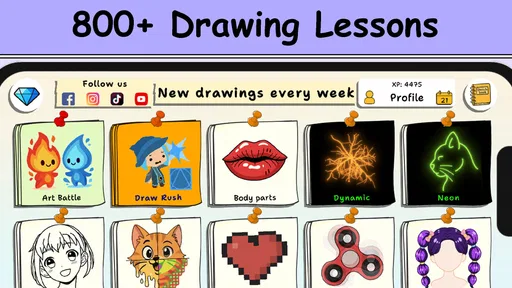
ArtLoop offers a wide range of lessons, each structured to build on the last. The courses are divided into categories like portraits, landscapes, and even anime. Each section is further broken down into bite-sized lessons, so you can easily fit a quick drawing tutorial into your day. I love how the app doesn’t just throw a bunch of techniques at you; it really takes the time to explain the fundamentals. For instance, the portrait course starts with understanding basic face shapes before moving on to more complex features like eyes and noses.
That sequence is useful because beginners often try to perfect details before checking the overall proportions. When I work through a portrait exercise, I would treat the early shapes as a checkpoint: pause before adding features and ask whether the face feels balanced on the page. If it does not, correcting the broad structure is easier than trying to repair every eye or nose later. The same habit transfers to other subjects: establish the large forms first, then spend time on smaller marks.
Worth Reading Before You Choose

Flipboard Shows What News Apps Must Do Beyond the Feed

Switching to Android Auto Means Rethinking Your Driving Routine

Google Calendar Makes a Crowded Week Easier to Manage

Ludo King Makes the Most of the Minutes Between Plans

Baby Panda World Brings Quick Play to Modern Phones, but Its Game Library Feels Busy

ESPN’s Live Game View Makes Following Close Games Easier
The choice of subject also changes what a lesson can teach. A portrait gives you a reason to study placement and symmetry, while a landscape encourages attention to the way larger areas sit together. Anime lessons can be inviting if that is the style that brought you to drawing, but I would still use them to practice underlying shapes instead of copying only the surface look. That keeps a fun exercise from becoming a one-off imitation and makes the time more useful for future drawings.
Each lesson comes with a video tutorial, which is a game-changer. Watching an artist demonstrate techniques in real-time provides insights that static images just can’t offer. Plus, you can pause, rewind, and replay the videos as many times as you need. It’s like having a professional artist by your side, patiently guiding you through each stroke.
Video instruction is most helpful when you use it actively. I would watch a short part, pause, and try the same step before moving on, rather than letting the demonstration run while I draw from memory. Replaying a tricky moment can reveal the order of actions or the direction of a stroke, details that are easy to miss when you only look at a finished example. A practical routine is to keep one attempt as a rough study and use a second pass to focus on smoother lines or cleaner proportions.
Making a lesson fit real life
A realistic use case is a short break after work or school. I might open a portrait lesson, follow just the initial construction, and leave the more delicate features for another session. The advantage is not that a brief practice magically produces a polished drawing; it is that the lesson gives that small window a purpose. If I return later, I can pick up by checking the same structure rather than spending the first few minutes deciding what to draw.
For a family setting, the Everyone age rating makes the app suitable to consider for a broad audience, though I would still choose lessons based on the person’s interest and patience. A child who wants to draw a favorite style may be more willing to practice than one asked to complete an abstract exercise. For an adult beginner, the appeal is similar: choose a subject you genuinely want to make, then let the guided steps handle the problem of where to begin.
One useful trade-off is that tutorials provide direction, but they can also tempt you to follow every example too closely. After completing a guided drawing, I would try changing one small thing—such as the angle, expression, or arrangement—without the video. This tests whether I understood the underlying step, not just the sequence. It is a simple way to shift from copying toward making choices of your own.
Tools and Features
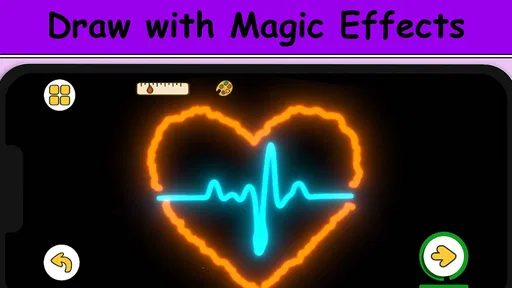
The app isn’t just about lessons; it’s also equipped with a suite of digital drawing tools. You have access to pencils, brushes, and erasers that mimic the feel of their real-world counterparts. The pressure sensitivity feature is particularly impressive, allowing you to create thin or thick lines based on how hard you press. This is perfect for practicing shading and depth.
Pressure-sensitive marks can make a drawing feel less uniform, but they take a little control. I would start with a simple line exercise: draw several strokes from light to firm pressure, then try a few gradual changes within one line. That gives you a practical feel for how your hand affects the mark before you rely on pressure for shading. If your device or drawing setup does not make pressure control comfortable, you can still focus on the lesson’s shapes and line placement rather than letting that one tool define the experience.
There is also a useful choice to make between drawing digitally and following the lesson with paper and pencil. Digital tools are convenient when I want to experiment with a stroke or erase a mark quickly; paper can feel more natural for someone who already keeps a sketchbook nearby. The teaching value comes from attending to the steps, so the best setup is the one that makes you willing to practice. I would avoid switching materials constantly during a single exercise, though, because it can distract from learning the sequence.
One standout feature is the interactive feedback system. After completing a lesson, you can submit your artwork for review. The app provides constructive feedback, highlighting areas for improvement and suggesting next steps. It’s like having a personal art coach who’s always available to help you level up your skills.
Feedback is most valuable when you treat it as a prompt for the next attempt, not as a verdict on whether you are talented. I would choose one suggested improvement and concentrate on it in a follow-up drawing. Trying to correct every weakness at once can make practice feel discouraging, while a single target—such as clearer proportions—gives you a more concrete way to judge whether you are improving. This also answers a common concern for beginners: you do not need to understand every technique before starting; you can work through one manageable correction at a time.
The feature is less suited to someone who wants complete independence from instruction or expects a finished result without practice. A guided lesson can show a process, but the learner still has to make the marks and notice where their own attempt differs. If you prefer open-ended experimentation, a general drawing program may be a better main workspace. ArtLoop makes more sense when instruction and a structured next step are what you want from the session.
Community and Sharing
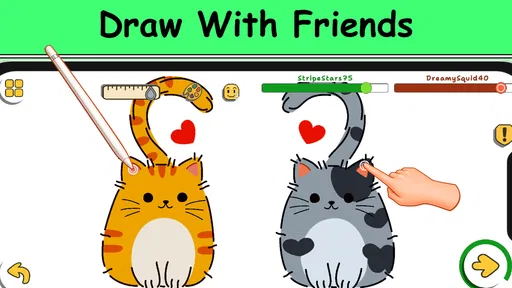
ArtLoop also fosters a sense of community among its users. There’s an option to share your work with other artists, offering a platform for feedback and inspiration. It’s amazing to see the diverse range of art styles and the progress others are making. This feature is great for motivation, especially on days when you’re feeling stuck or uninspired.
Sharing can be useful even when you are not looking for broad attention. I would post a study with a specific question in mind, such as whether the main shapes read clearly, rather than asking people to judge the whole drawing. A focused request makes responses easier to apply and helps you avoid treating every opinion as equally important. If you would rather keep practice private, you can still use the lessons without making community participation the measure of success.
The app even hosts regular drawing challenges and contests. Participating in these events can be a fun way to push your boundaries and try new styles. Plus, winning a contest can give you a nice confidence boost and sometimes even a little prize.
A challenge is best approached as a reason to try something outside your routine, not as proof that you need to compete to improve. I would use one to practice a new subject or complete a drawing by a personal deadline, then keep the result as a record of what I tried. People who dislike public comparison may prefer to set their own private challenge instead. Either way, the useful part is making a clear commitment to draw, not winning.
How it compares with other ways to learn
Compared with a conventional drawing app that mainly gives you a blank workspace and tools, ArtLoop puts the lesson first. That is a real advantage when the problem is not how to make a mark but what to do next. A general-purpose drawing program is the better choice if you already know your process and want more room to build a personal workflow. For a beginner who tends to quit after opening an empty canvas, guided steps can provide a friendlier starting point.
It also differs from learning only from books or still images because its video demonstrations let you revisit movement and order. Books can be easier to browse at your own pace and keep beside a sketchbook, while a video can make a stroke or progression clearer. I would not treat either format as a replacement for the other: use ArtLoop to follow a demonstration, then keep a paper sketch or personal notes if you want a reference you can scan quickly later.
For someone who already takes in-person art classes, the app is more naturally a practice companion than a substitute for direct teaching. A teacher can respond to your particular drawing in context, while an app lesson gives you a structured exercise to repeat independently. If personalized critique and a long-term curriculum are your main priorities, a class or dedicated instructor may suit you better. If you want approachable prompts to practice between those sessions, this format has a clearer role.
Who will get the most from it
I would recommend ArtLoop most readily to a curious beginner, a casual learner who benefits from visual demonstrations, or someone who wants a low-pressure way to build a drawing habit. It can also suit an experienced hobbyist who wants a guided refresher or a themed exercise, though it is not necessarily the right central tool for advanced artists seeking highly specialized instruction. The best match is a learner who enjoys following a sequence and is willing to repeat steps rather than expecting immediate mastery.
It is less likely to satisfy someone who wants a completely open canvas, advanced professional controls, or a course tailored closely to a specific personal goal. It may also be a poor fit if you strongly dislike watching instruction or prefer to learn by experimenting without prompts. In those cases, a dedicated drawing app, a sketchbook, or a more personal form of teaching may be more rewarding. The key question is whether a guided lesson makes you more likely to draw; if it does, the app’s approach has a practical advantage.
Final Thoughts
In the end, ArtLoop: Learn how to draw is more than just an app; it’s a comprehensive platform for learning and growing as an artist. Whether you’re just starting out or looking to refine your craft, this app offers the tools and community to support your artistic journey. With its user-friendly design, engaging lessons, and interactive features, it’s an invaluable resource for anyone looking to improve their drawing skills.
Its current version is 1.9.05, and the app works on devices running Android 7.1 or later. I would think of that as a practical compatibility check before settling into a routine, especially if you plan to use it on an older phone or tablet. The combination of guided lessons, drawing tools, and community features gives it several ways to support practice, but the core question remains whether you enjoy learning from demonstrations and structured steps.
If you’re ready to take your art to the next level, give ArtLoop a try. It might just be the creative boost you’ve been looking for. Happy drawing!
Pros
- User-friendly interface for beginners.
- Wide variety of drawing tools available.
- Interactive tutorials enhance learning.
- Regular updates with new content.
- Offline mode for on-the-go use.
Cons
- Limited advanced features for pros.
- Some tutorials require in-app purchases.
- Occasional lag on older devices.
- No support for stylus pressure sensitivity.
- Limited export options for finished art.
FAQs for ArtLoop: Learn how to draw
What is ArtLoop: Learn how to draw?
ArtLoop is an interactive drawing app designed for both beginners and experienced artists. It offers a range of tutorials, tools, and features to help users learn and improve their drawing skills. With step-by-step guides and a variety of drawing techniques, it caters to different skill levels.
Is ArtLoop suitable for beginners?
Yes, ArtLoop is perfect for beginners. It provides easy-to-follow tutorials and basic drawing exercises that help users understand fundamental techniques. The app is user-friendly, with clear instructions and guidance, making it accessible for those who are just starting their artistic journey.
What features does ArtLoop offer?
ArtLoop comes with a variety of features including step-by-step tutorials, a wide range of brushes and tools, customizable color palettes, and community sharing options. It also offers practice exercises and challenges to help users refine their skills and keep learning engaging and interactive.
Can I use ArtLoop offline?
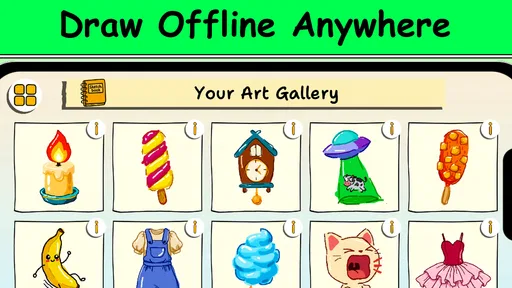
Yes, ArtLoop offers offline capabilities for certain features. Users can access downloaded tutorials and use the drawing tools without an internet connection. However, some features like community sharing and downloading new content may require an internet connection.
Is ArtLoop available for both Android and iOS?
ArtLoop is available for both Android and iOS platforms. Users can download it from the Google Play Store or the Apple App Store. The app is optimized for a seamless experience on both operating systems, ensuring accessibility for a wide range of devices.


